How to install Tesla CarPlay/Android Auto 2026: Clevisco Tutorial for All Models
Transform your Tesla Model 3, Model Y, Model X, Model S (2017-2026), BYD, or ROX01 with wireless CarPlay and Android Auto using this simple installation guide.
What is the Clevisco CarPlay/Android Auto Device?
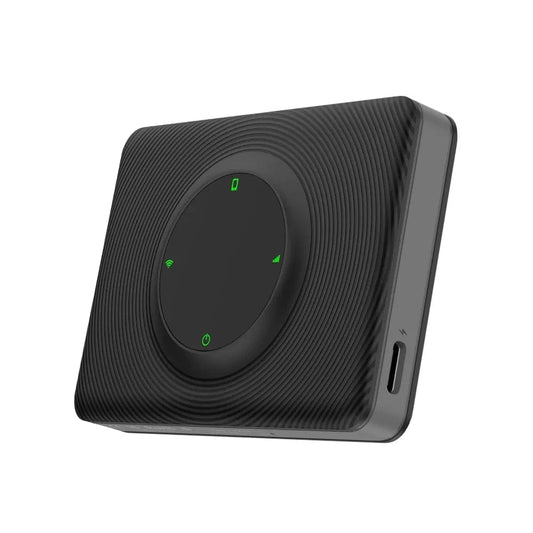
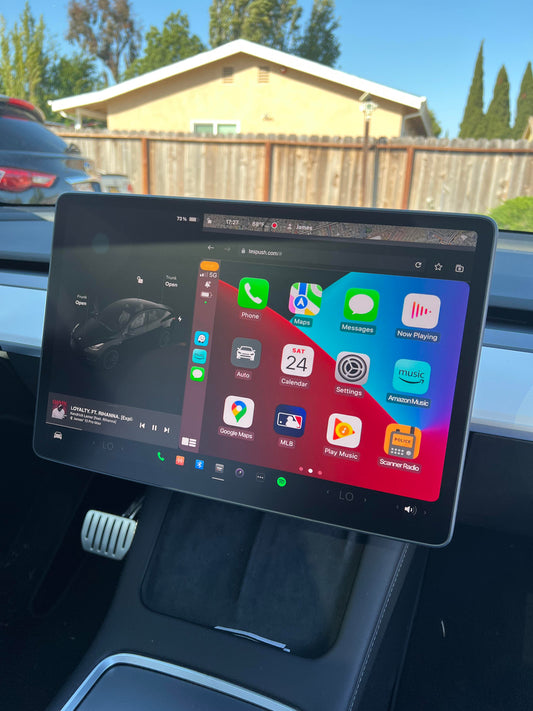
The Clevisco CarPlay/Android Auto adapter is a browser-based solution that brings Apple CarPlay and Android Auto to your Tesla screen. It works with any car that has an internet browser and WiFi, including:
- Tesla Model 3, Y, X & S (all 2017-2026 models)
- BYD vehicles
- ROX01
- Other browser-enabled cars
Why upgrade? Get instant access to the latest maps, AI assistants, and mobile app updates without waiting for manufacturer software releases.
What's included: USB-C and USB-A cables for compatibility with any car USB port.
Installation & Software Update Guide
Disclaimer: Instructions are from the official Clevisco user manual included in the box (available in English and Arabic).
Step-by-Step Installation:
1. Connect the device
- Plug the Clevisco adapter into any USB port in your car.
2. Enable mobile hotspot
- Turn on your phone's mobile hotspot.
- For Android: Enable Bluetooth tethering if available.
- For iPhone: Turn on Maximize Compatibility if available.
3. Connect your phone to Autokit via Bluetooth
- Go to your phone's Bluetooth settings and connect/pair to Autokit. Enable CarPlay/Android Auto when prompted.
4. Update software (one-time setup)
- Connect your car to Autokit WiFi (password: 88888888).
- Open your car's internet browser.
- Navigate to:
192.168.3.1 - Scroll down and click "Software Update".
- Wait up to 15 minutes – don't disconnect or close the browser.
- The software updates automatically using your hotspot.
5. Reconnect phone and car
- After the software update is complete, the device will automatically restart.
- Connect your phone to Autokit via Bluetooth.
- Open your Tesla/BYD/ROX01 WiFi settings.
- Connect to the "Autokit" WiFi network.
- Password:
88888888 - Enable "Keep connected during drive" if available.
6. Launch CarPlay/Android Auto
- Open your car's internet browser.
- Go to: Tespush.com
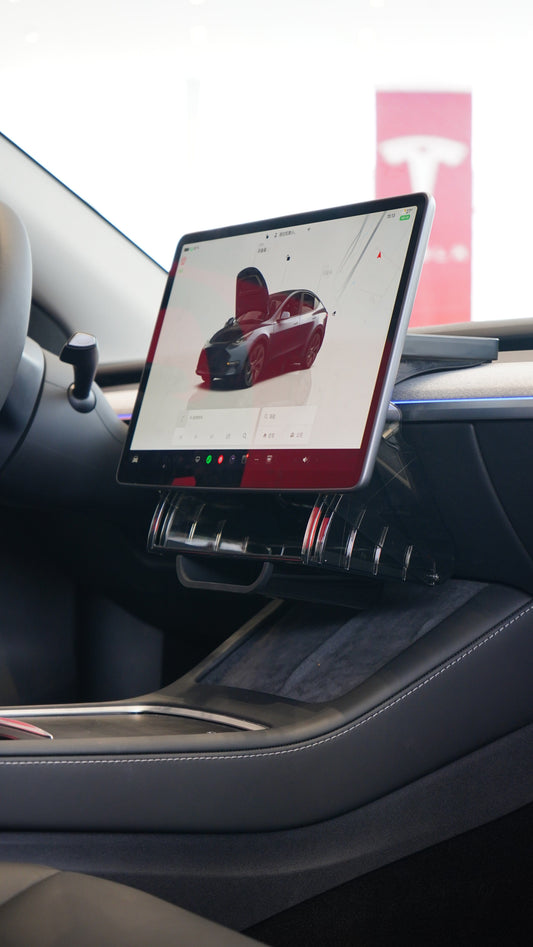
- CarPlay/Android Auto now displays on your screen!
Customization Settings
Optimize your experience with these display adjustments:
Access Settings:
- Tap the "My Car" or "Auto" app in CarPlay/Android Auto.
- Select "Display".
Recommended Settings:
- Display Mode: Switch from pictures to videos (smoother performance).
- Frame Rate: Tap "FAST" for increased speed.
- Resolution: Choose HD/Auto or Fast for clarity.
Note: The device may restart after each setting change.
Benefits of Tesla, BYD, ROX01 CarPlay/Android Auto Adapter 2026
Adding CarPlay and Android Auto to your Tesla gives you:
✅ Latest Navigation: Real-time traffic updates and newest maps
✅ Voice Assistants: Siri and Google Assistant integration
✅ Streaming Apps: Spotify, Apple Music, podcasts, and more
✅ Messaging: Safe, hands-free texting
✅ Regular Updates: Automatic app improvements from your phone
Compatible Vehicles
This Tesla accessory works with:
- Tesla Model 3 (2017-2026)
- Tesla Model Y (2020-2026)
- Tesla Model X (2017-2026)
- Tesla Model S (2017-2026)
- BYD (2025-2026) internet browser model
- ROX01 (2025-2026) internet browser model
- Any car with WiFi and an internet browser
Where to Buy
Get your Clevisco Wireless CarPlay/Android Auto adapter and upgrade your Tesla experience today.
Need help? Refer to the complete user manual (English and Arabic) or contact support at clevisco.ae/support.