How to play PUBG on the Clevisco Mobile Controller | ShootingPlus V3 App Tutorial
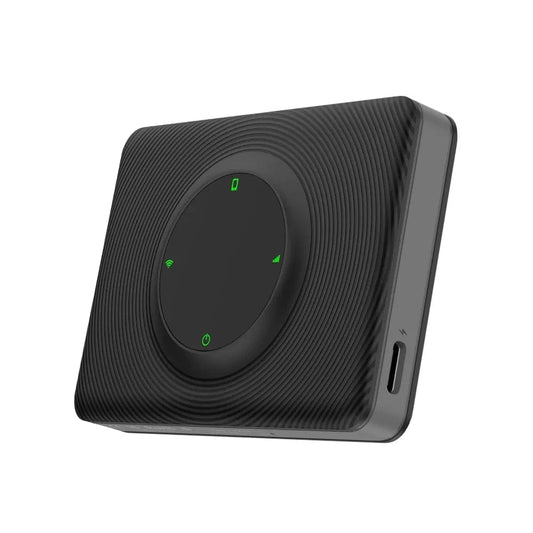
The Clevisco mobile gaming controller is one of the best controllers you can get for your phone. It works with many different modes including Xbox, PlayStation, Nintendo Switch, PC, and Direct Mode (D3). This means you can use it to play almost any game on your Android or iOS device — from PUBG and Call of Duty to Minecraft, Roblox, FIFA, League of Legends, and even Assassin's Creed.
For Android users, there is a free app called ShootingPlus V3 that lets you connect the controller and map every button to any game you want. The steps below use PUBG as an example, but you can follow the exact same process for any other game.
Step 1: Download the ShootingPlus V3 App
On your Android phone, open the Google Play Store and search for ShootingPlus V3. Download and install it. This app is what makes your Clevisco controller work with mobile games.
Step 2: Switch Your Controller to D3 Mode
Before connecting, you need to put your Clevisco controller into D3 Mode. Check the user manual that came in the box to find the exact button combination needed to turn on D3 Mode.
Step 3: Connect via Bluetooth
Open your phone's Bluetooth settings and search for new devices. You should see a device called D3 appear in the list. Tap on it to pair. Once the connection is successful, the LED light on your controller will stop blinking and stay on solid.
Step 4: Open the ShootingPlus V3 App
Launch the ShootingPlus V3 app. At the top of the screen, it should show your controller's name and say it is connected. If it says "disconnected," just close the app fully and reopen it.
Once connected, you can minimize the app — but do not swipe it away or close it completely. It must keep running in the background while you play your game.
Step 5: Open Your Game
Now open whichever game you want to play. For this guide, we're using PUBG Mobile. Go to the lobby or the settings screen inside the game.
Step 6: Open the V3 Overlay and Load a Profile
Look for a small white button with the text "V3" on your screen — this opens the controller overlay. You now have two ways to set up your controls:
Option A – Easy Way: Tap "More Presets" and find your game (for example, PUBG). Download the ready-made control layout and you're almost good to go.
Option B – Custom Setup: Tap "NEW" to build your own layout from scratch. This gives you full control over every button.
Step 7: Map Your Buttons
If you chose the custom setup, here's how to assign buttons:
Press any button on your controller — for example, the A button. An "A" icon will appear on your phone screen. Drag that icon on top of whatever in-game button you want it to control. For example, drag the A icon onto the Jump button in PUBG.
Do this for every button you want to use. Here are some common mappings to get you started:
- Right Trigger → Fire button
- Left Trigger → Aim/Scope button
- Joystick → Movement pad
Made a mistake? Just drag the icon to the Trash Can on the screen to remove it.
Quick Tip: Press the SELECT (or BACK) button on your controller while mapping to show or hide the button labels. This helps you keep track of what you've already set up.
Step 8: Save and Play
When you're happy with your setup, tap the SAVE button in the overlay (or press the START button on your controller). Your controls are now active and ready to use.
That's it — jump into the game and start playing with your Clevisco controller!
Need more help? Visit Clevisco.ae/support